This section covers the creation and access to a Windows VM to allow access to you YoloColo Network
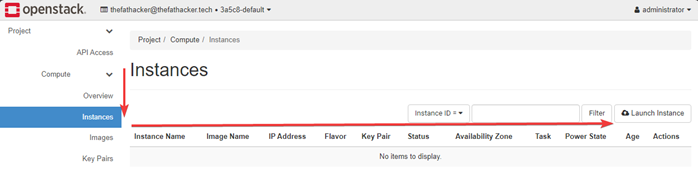
1. Navigate to Instances - OpenStack Dashboard (zeroone.tech) and Launch an Instance
=== Create - Windows Instance ===
# [[File:JumboxSetup Step5 1.png|right]] Navigate to [https://cloud.zeroone.tech/horizon/project/instances/ Instances - OpenStack Dashboard (zeroone.tech)] and “Launch Instance” <div style="clear: both"></div>
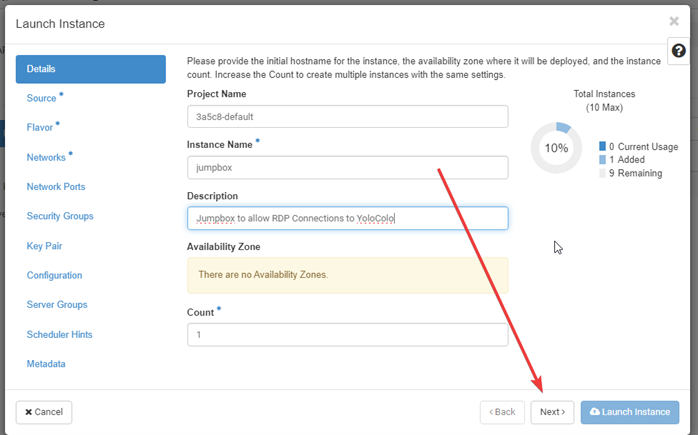
2. Name you Instance then click next
# [[File:JumboxSetup Step5 2.png|right]] Name you Instance then click next <div style="clear: both"></div>
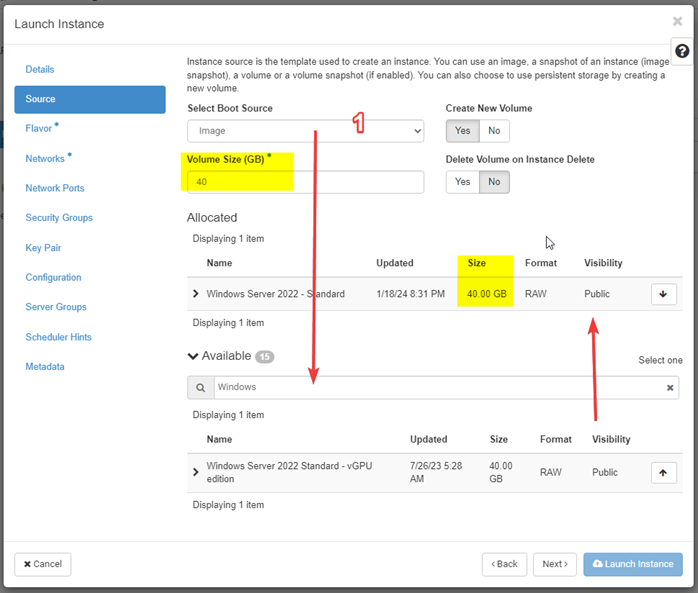
# [[File:JumboxSetup Step5 3.png|right]] For Source, Change to Image, you can then search for Windows to show available Windows Server 2022 Standard Image which you can then select '''(DO NOT SELECT “vGPU edition” unless approved by Management for vGPU resource access)''', Volume Size will now be the minimum size to accept image. You can increase volume size, ''but not make smaller that Image''. Then next <div style="clear: both"></div>
# [[File:JumboxSetup Step5 4.png|right]] Set the “Flavor” or Size of the VM. In this case I am using a “z1.gs.small” as the Windows Image needs a Minimum RAM allocation of 4096MB, then next <div style="clear: both"></div>
3. For Source, Change to Image, you can then search for Windows to show available Windows Server 2022 Standard Image which you can then select (DO NOT SELECT “vGPU edition” unless approved by Management for vGPU resource access), Volume Size will now be the minimum size to accept image. You can increase volume size, but not make smaller that Image. Then next
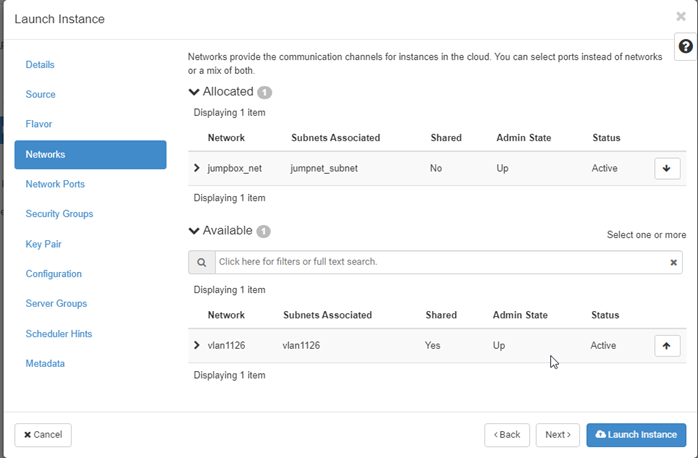
# [[File:JumboxSetup Step5 5.png|right]] Allocate the Network we create for this in the [[YoloColo:Jumpbox#“Jumpbox”_LAN|“Jumpbox” LAN Setup]] instructions above to this instance. Then next. '''''NOTE:''''' ''Do not add you vlan1XXX network at this setup as it does not have internet access available and will resolute in this VM not being setup correctly'' <div style="clear: both"></div>
# Skip Network Ports. No Changes required here <div style="clear: both"></div>
4. Set the “Flavor” or Size of the VM. In this case I am using a “z1.gs.small” as the Windows Image needs a Minimum RAM allocation of 4096MB, then next
5. Allocate the Network we create for this in the instructions above to this instance. Then next.
6. Skip Network Ports. No Changes required here
7. Allocate the Security Group created for Allowing RDP Connections to this device. You will see as per my note when creating the security group I have the “default” allow we traffic group then the second security group to “allow” RDP connections. Then Next.
7. Allocate the Security Group created for Allowing RDP Connections to this device. You will see as per my note when creating the security group I have the “default” allow we traffic group then the second security group to “allow” RDP connections. Then Next.
Revision as of 03:01, 11 January 2025
Jumpbox Remote Access Setup
This guide is to setup a bastion remote desktop server in order to access yolocolo services delivered by ZeroOne Technologies
Requirements:
A Brain to be able to follow documentation
Credentials to Access ZeroOne Tech OpenStack Tenant
Setup Networking
First we must enable networking and request a public IP address to enable an internet routable VM on openstack
“Jumpbox” LAN
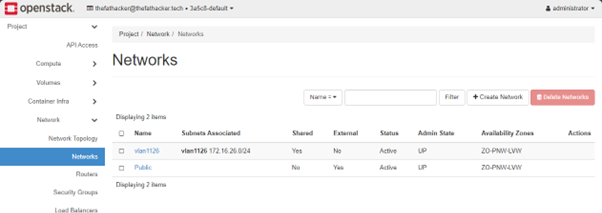
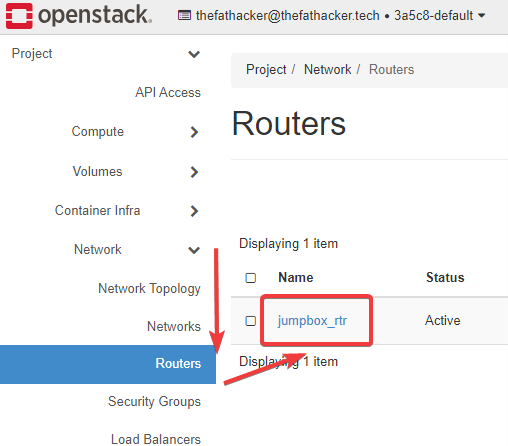
Setup LAN Step 1 Open Networks - OpenStack Dashboard (zeroone.tech), You will have at least two networks listed. 1) Being Public and 2) being vlan1XXX. Public is the Public internet hosted by ZeroOne and vlan1XXX is your network local network for your yolo services. if vlan1XXX is not provisioned in your tenant please contact ZeroOne Support using #chat-suport on ZWS Discord
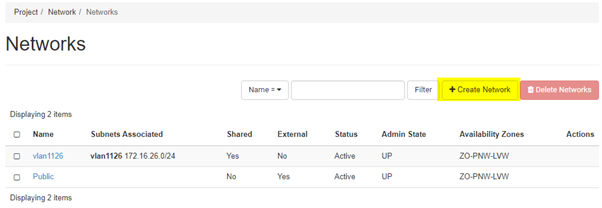
Setup LAN Step 2 We need to create a network for your “Jumpbox” using the “Create Network” option
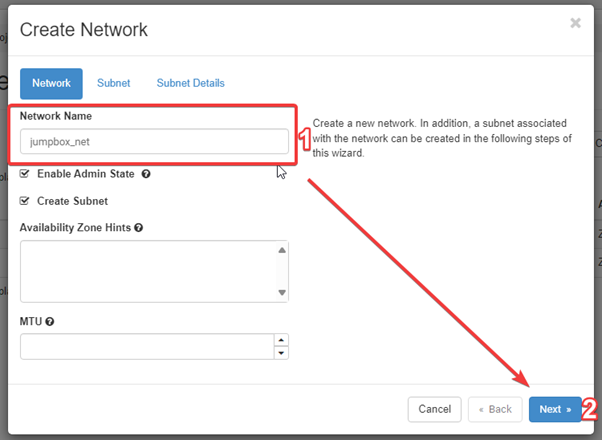
Setup LAN Step 3 Name your network (in this case I am using “jumpbox_net”, leaving all other values as default, then click “Next”
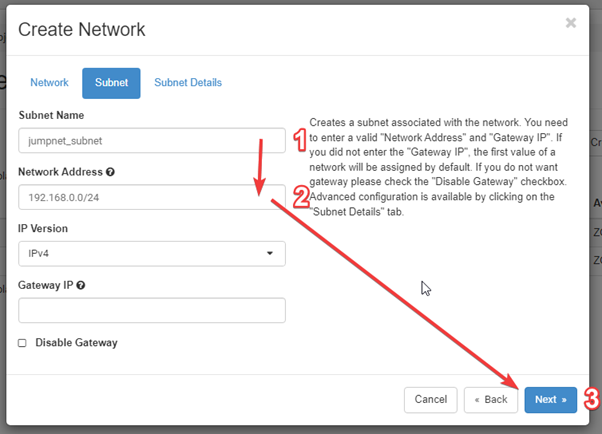
Setup LAN Step 4 Define the IP Scope of this network, by giving it a name and address in CIDR Format. Leave IP Version Defaulted to IPv4 and Gateway Empty (This will be filled out by OpenStack), Then Click on next
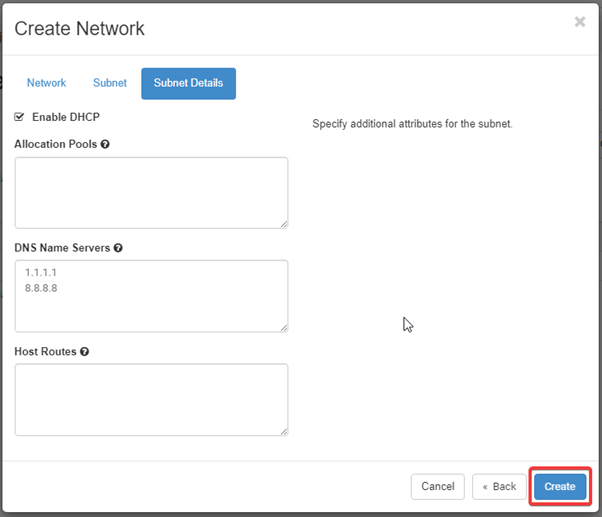
Setup LAN Step 5 On the subnet Details Page, Click create leaving all other details default
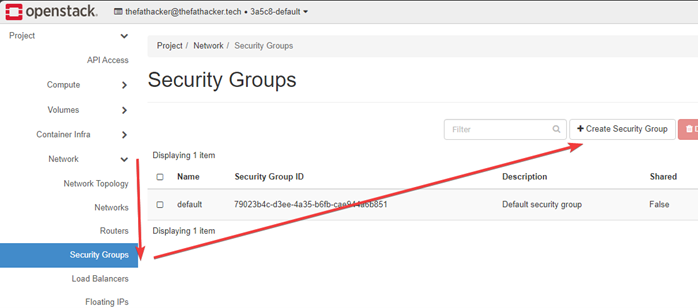
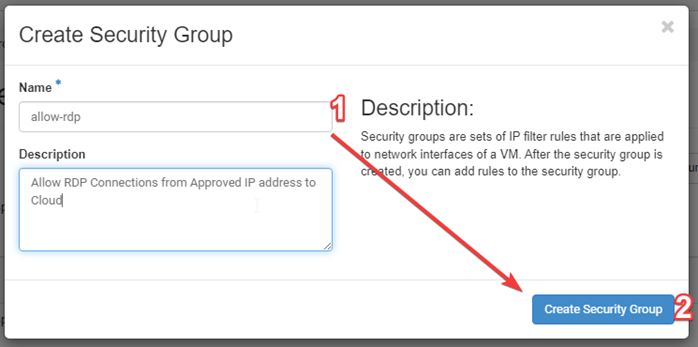
Give it a useful name, in this case it is to allow you to remotely access your “Jumphost” then create.
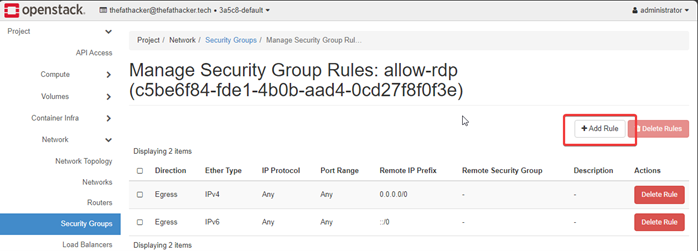
With the Security Group created we can now add rules, add a rule.
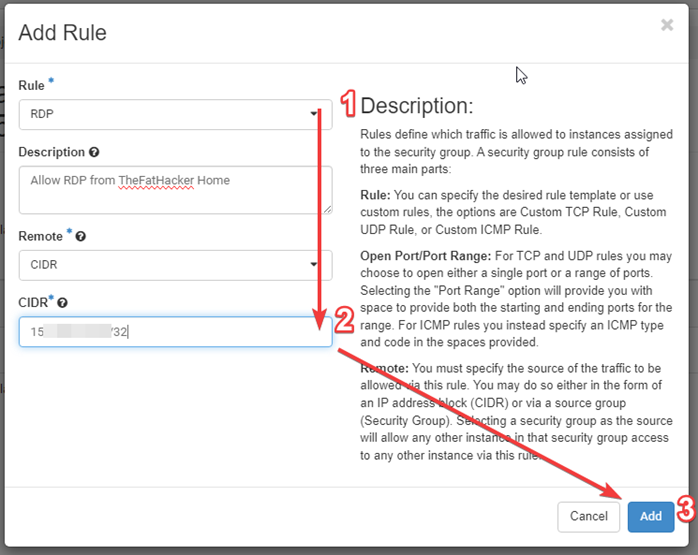
Set the rule type to RDP and enter the source IP of where you will be receiving RDP Requests. If you are unsure of what your IP Address in CIDR Format is you can use services such as WTF is my IP?!?!?? / https://myip.wtf. You can also use 0.0.0.0/0 but this would allow anyone to attempt to connect to your “Jumpbox” on RDP which can be a BadIdea™ , then “add”. Note if you intend to use a Linux Jumpbox, select SSH for the Rule instead
Note on Security Group Rules: Can had multiple and apply multiple to Compute Instances. As a result I will remove default rules from my Security Groups to allow for layering of rulesets. You will see this later, as a result my reset for allow-RDP looks like:
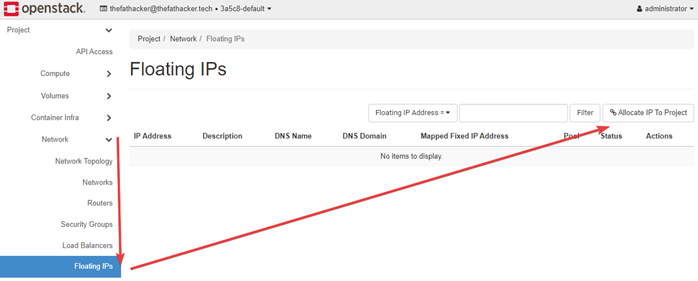
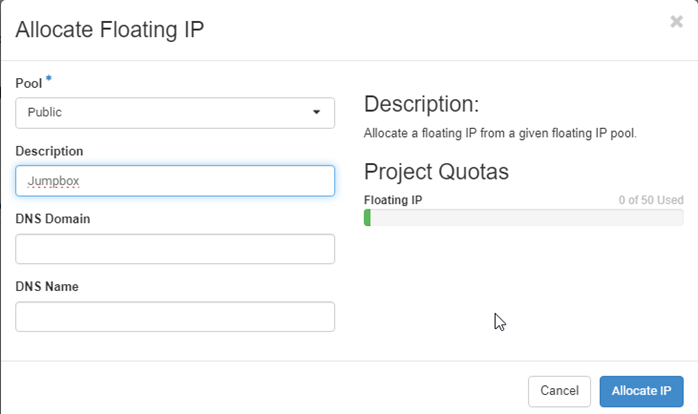
Give the IP A description, then complete the allocation by then clicking “Allocate IP”
Networking Setup - Summary
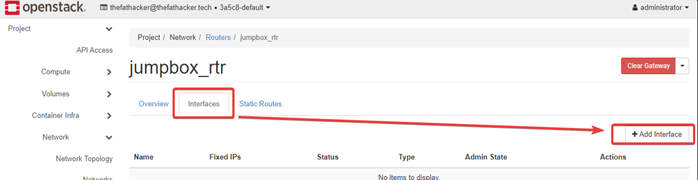
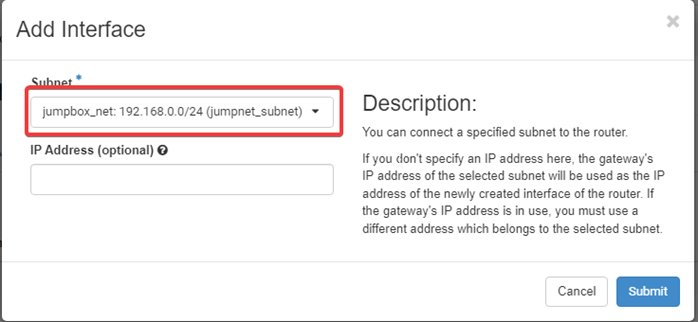
This completes the Networking Required for Setting up to have a Jumpbox on ZeroOne Cloud to access Yolocolo Services you can see the network layout at Network Topology - OpenStack Dashboard (zeroone.tech)
Compute Instance Setup
This section covers the creation and access to a Windows VM to allow access to you YoloColo Network
For Source, Change to Image, you can then search for Windows to show available Windows Server 2022 Standard Image which you can then select (DO NOT SELECT “vGPU edition” unless approved by Management for vGPU resource access), Volume Size will now be the minimum size to accept image. You can increase volume size, but not make smaller that Image. Then next
Set the “Flavor” or Size of the VM. In this case I am using a “z1.gs.small” as the Windows Image needs a Minimum RAM allocation of 4096MB, then next
Allocate the Network we create for this in the “Jumpbox” LAN Setup instructions above to this instance. Then next. NOTE:Do not add you vlan1XXX network at this setup as it does not have internet access available and will resolute in this VM not being setup correctly
Skip Network Ports. No Changes required here
7. Allocate the Security Group created for Allowing RDP Connections to this device. You will see as per my note when creating the security group I have the “default” allow we traffic group then the second security group to “allow” RDP connections. Then Next.
8. We can now create the private key for this machine, if you already have a private key, you can import it or otherwise we will create one now, click on “Create Key Pair”, give it a name and type of SSH (YOU MUST SAVE THIS KEY AS WE CANNNOT RECOVER IT AND WITHOUT IT YOU CANNNOT ACCESS THIS VM AND IT WILL NEED TO BE RECREATED)
9. With the Key Pair defined we can now “Launch”
10. We can then Allocate the Previously requested Floating IP
11. Retrieve the Password, you will be then prompted for the previously generated SSH key. As previously noted if you have an issue with the private key, we will be unable to recover your password to access this Instance
12. After Approx 5 minutes Instance should then be available to remote access using the windows remote desktop client with the username Administrator and the password decrypted above
13. Lastly we can attach the Instance to the YoloColo Network by using “Attach Interface”, when using the option you will have the option to set an IP Address for this instance, if you do not one will be assigned for you, but do not use an IP Address below .10 as these are reserved for Openstack Services.
You will now have two Networks available in your remote desktop